
Applications may require an Authorized Representative to upload supporting documents. When a document is requested, the application will display the document name, indicate whether it is required, and provide an Upload documents button.
Applicants can view all required and requested documents in the Provide Documents section of the application.
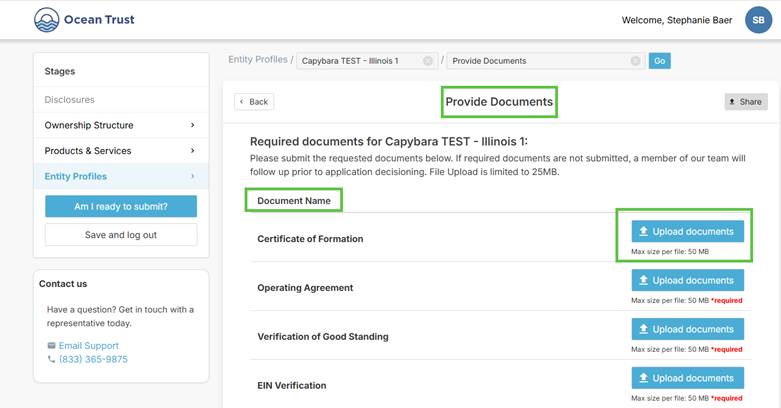
To upload a document,
#1. Select Upload documents next to the document to upload.
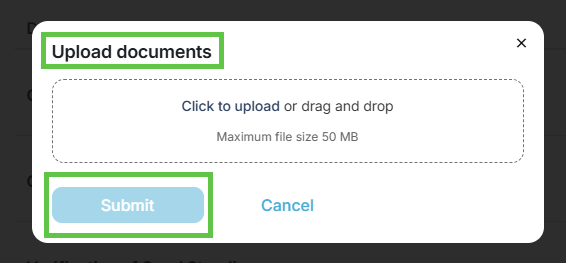
#2. A window will open where applicants can either drag and drop the file or click on Click to upload to browse their device to select it.
#3. Once attached, click Submit.
Uploaded Document Specifications
Uploaded documents must meet the following requirements to attach successfully.
Supported file types include:
- docx
- jpg
- jpeg
- tiff
- xlsx
- png
Unsupported file types will not be attached to the application.
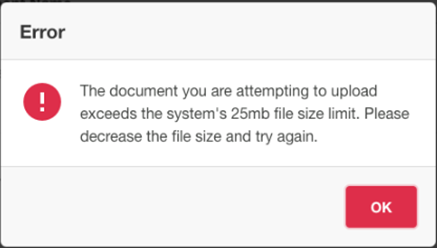
File size limit: 25 MB
If a file exceeds 25 MB, the applicant will receive an error message and the file will not upload. This may require communication with the financial institution on how to get document
Was this article helpful?
That’s Great!
Thank you for your feedback
Sorry! We couldn't be helpful
Thank you for your feedback
Feedback sent
We appreciate your effort and will try to fix the article