
If the FI has additional questions from the application, they may reach out to ask additional questions within the application.
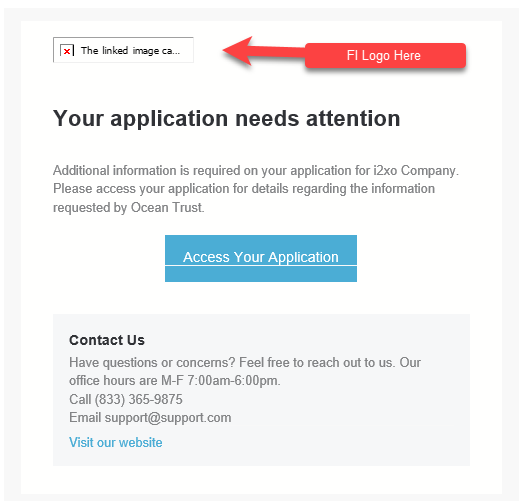
You would have received an email similar to the below, requesting you to access your application for additional information.
Click on Access Your Application and log in with your email and secure password.
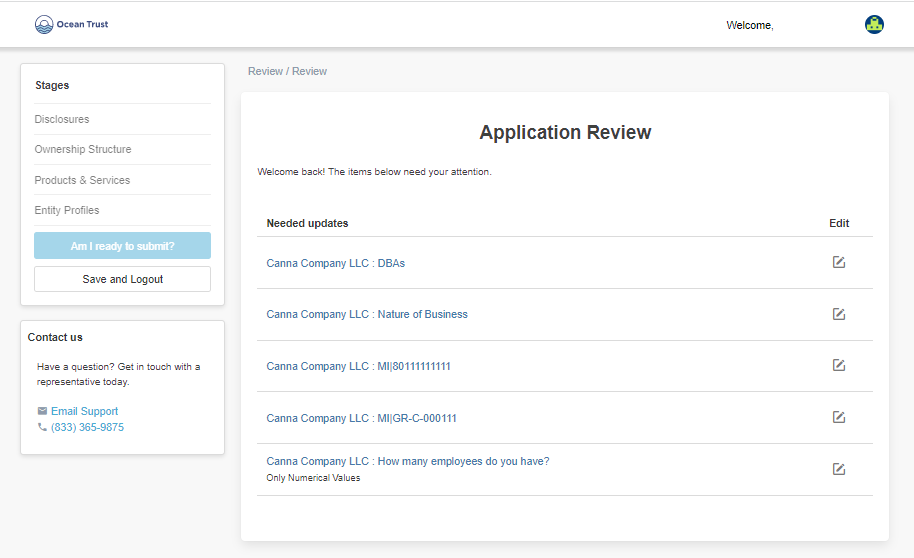
Once logged in, you will be brought into the application to the Application Review page below. The page will list where the additional questions exist in the application and provide a link to jump directly to the location of the question.
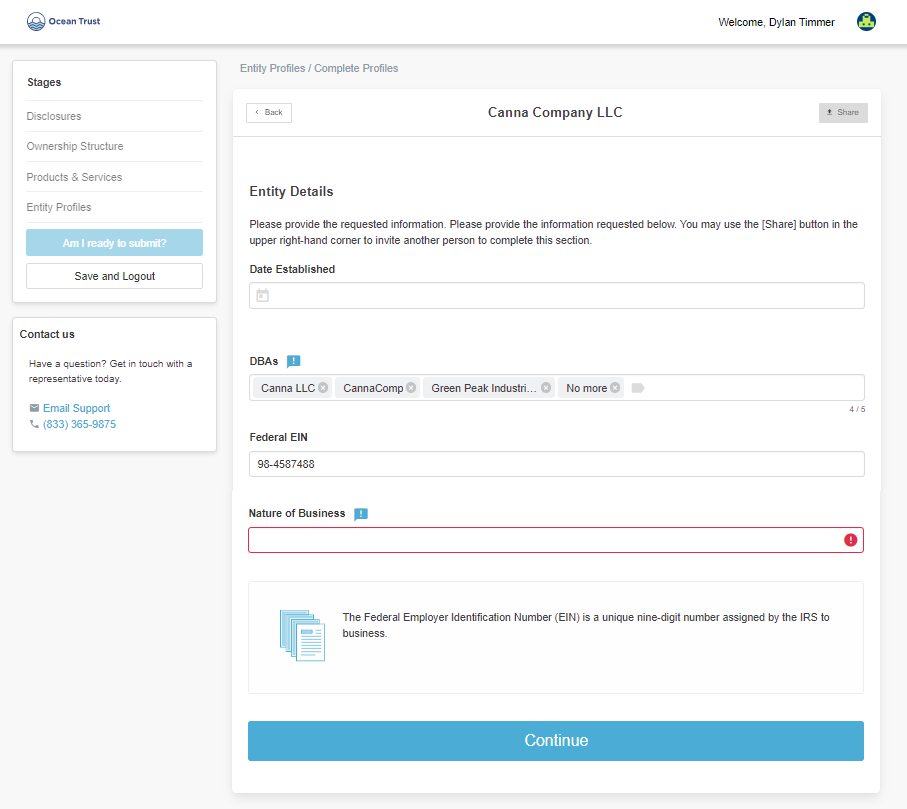
To resolve an entity or individual detail comment or additional question comment (see example below):
1. Click on the item for update, that will bring you to the page with the question.
2. The Field with comment will be highlighted in red.
3. Click on the exclamation comment icon next to the field to see a question for additional detail. Hovering over icon states "You have new comments."
4. Respond to the question or update the value in the application.
5. Scroll down to the bottom of the page and click Submit/Continue.
6. This will return you to the Application Review page if more comments exist and the comment will be removed from the Application Review page.
7. If all comments are resolved, you will be returned to the Application Review page thanking you for the updates.
8. You may then log out.
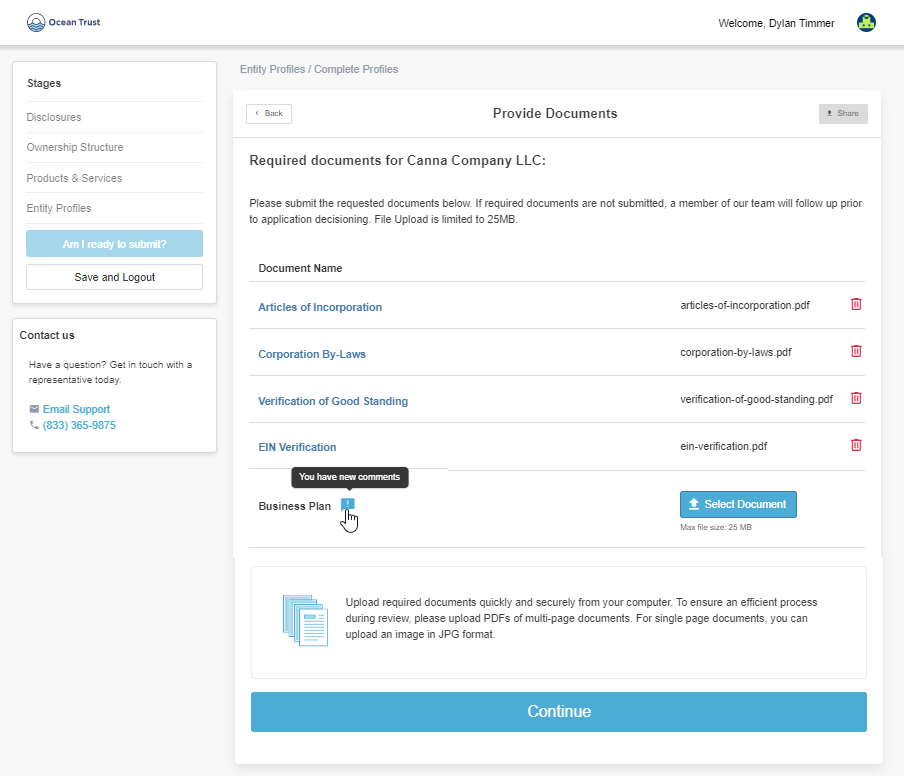
To resolve a document request(see example below):
1. Click on the item for update, that will bring you to the page with the question.
2. The Field with comment will be highlighted in red.
3. Click on the exclamation comment icon next to the field to see a question for additional detail. Hovering over icon states "You have new comments."
4. Attach document or respond to question.
5. Scroll down to the bottom of the page and click Submit/Continue.
6. This will return you to the Application Review page if more comments exist and the comment will be removed from the Application Review page.
7. If all comments are resolved, you will be returned to the Application Review page thanking you for the updates.
8. You may then log out.
Example: Information Request (Gable Grow: Phone Number)
Example: Document / Additional Question Request (Gable Grow: Please provide a PFS & Gable Grow: Do you own any other entities?)
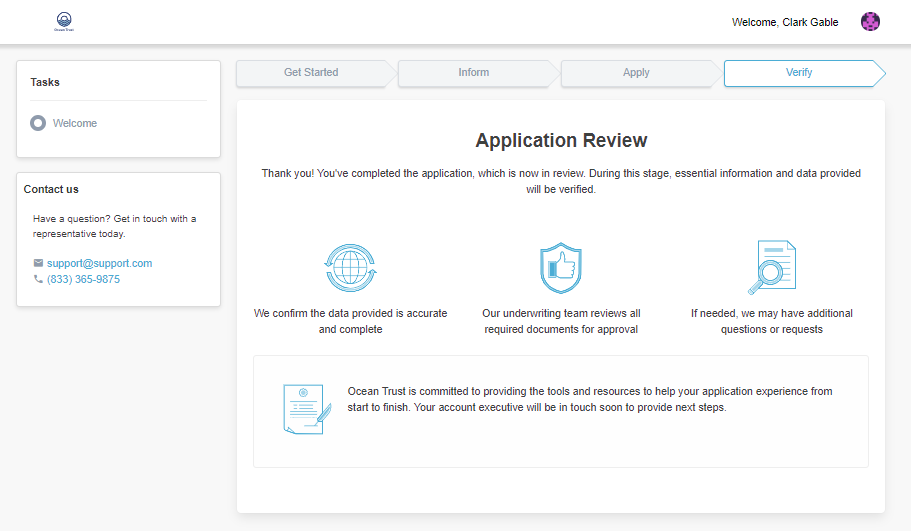
Once all comments are resolved, the application will arrive at the Application Review page, thanking you for completing the application. A notification will be sent to the FI that you have responded to the additional questions.
Once
Was this article helpful?
That’s Great!
Thank you for your feedback
Sorry! We couldn't be helpful
Thank you for your feedback
Feedback sent
We appreciate your effort and will try to fix the article