Access the User List by clicking Users at the top of your screen.
 User creation is restricted to Client Administrators, and newly created users can only be assigned the Client Operations role.
- The Users Screen will display all users with access to your MRBs. The Status icons in the left column indicate the status of the user.
- Green = Active
- Red = Locked Out
- Gray = Disabled
- Amber = Pending
- To create a new user, click Add User and complete the fields on screen under User Information. Please note: a user's username cannot be changed.
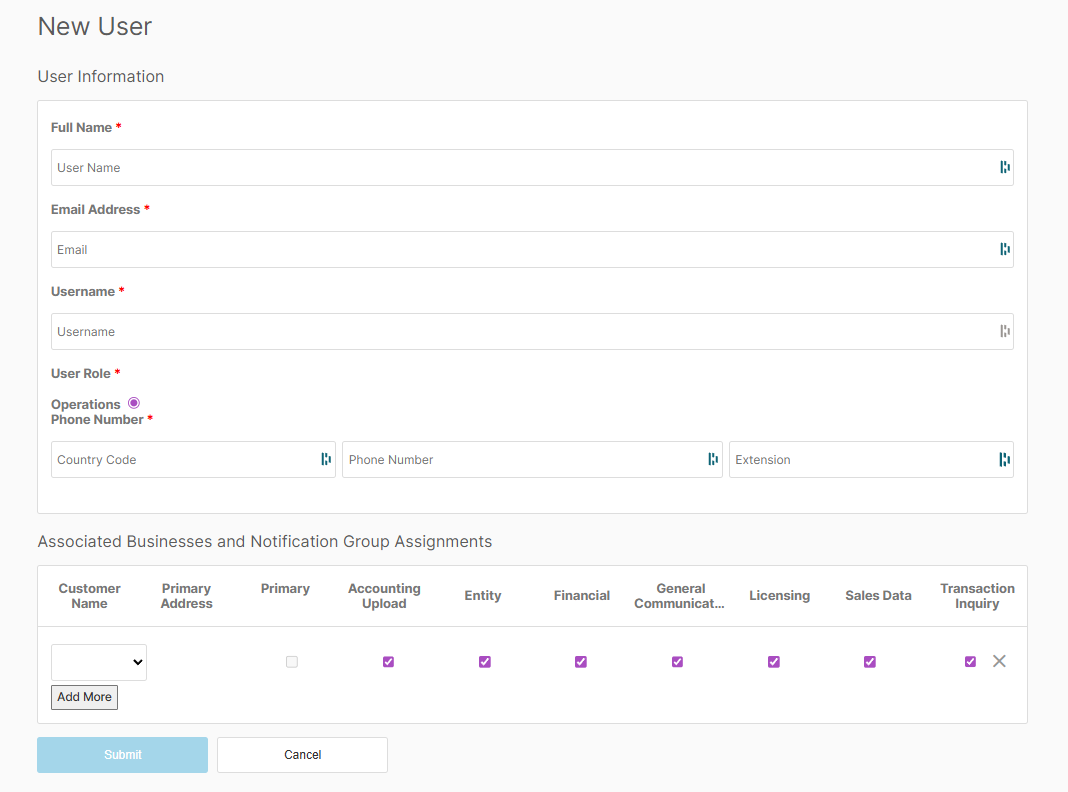
- Complete the Associated Businesses and Notification Group Assignments.This container allows you to select any notification groups that the user should receive. Note: Users must be assigned to at least one business and can be associated to multiple businesses
- Click Submit to send a system generated email to the new user. The email will provide a link to the login website and a temporary password. The user should follow the First Time Login for New Users process.
To disable a Client User or edit Notification Group Assignments, click here.
Was this article helpful?
That’s Great!
Thank you for your feedback
Sorry! We couldn't be helpful
Thank you for your feedback
Feedback sent
We appreciate your effort and will try to fix the article